


Custom Domains
Add a domain you control to a deployed Reflex Cloud app. Custom domains are available on the Pro and Enterprise plans.
Add the Domain
- Open Deployments and select the app.
- Select Custom Domain.
- Enter the domain, such as
app.example.comorexample.com. - Select Add domain.
An app serves one custom domain. To reach it from both example.com and www.example.com, add one of them here and set up a redirect for the other at your DNS provider.
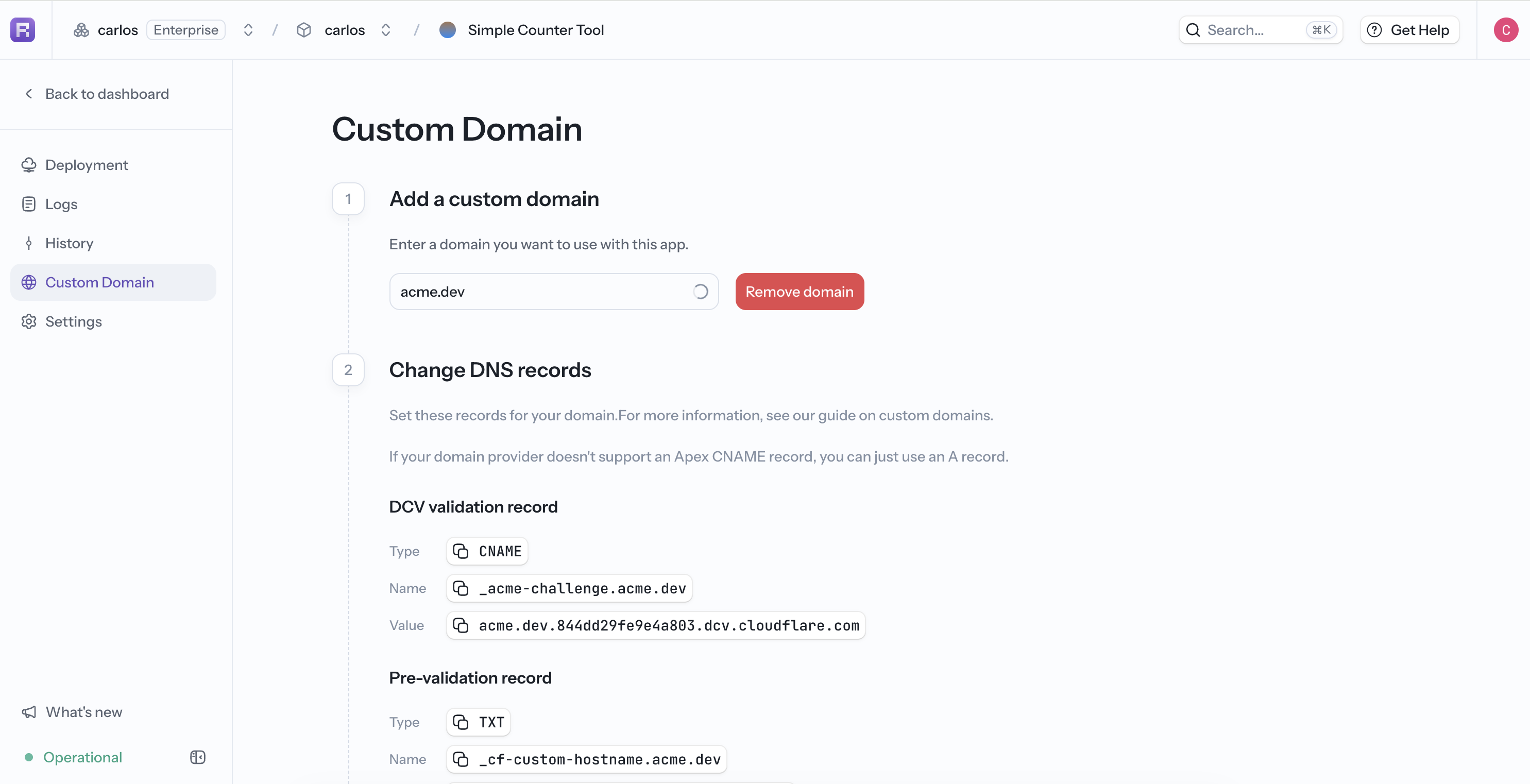
Change DNS Records
After the domain is added, Reflex shows the records that domain needs, with a copy button for each name and value. Add them at the DNS provider that manages the domain.
A root domain such as example.com cannot hold a CNAME, so Reflex shows an A record for it. If your DNS provider supports ALIAS or CNAME flattening at the root, a CNAME to the value shown for subdomains also works.
- Copy the name and value exactly.
- Some DNS providers automatically append the root domain to the name; avoid entering it twice.
- If the domain already has an
AorCNAMErecord for the same name, replace it rather than adding a second one. - If the domain's DNS is hosted on Cloudflare, set the routing record to DNS only (grey cloud), so it points at Reflex directly rather than through your own proxy.
Use the records shown in the dashboard for your app rather than values from an example or another deployment.
Verify
The Verification step checks your DNS and Cloudflare's status and says what is still missing: each record shows whether it was found, is not there yet, or is set to a different value. Use Check now to re-run the check after changing records. DNS changes usually appear within minutes, sometimes up to a few hours.
Common states:
- No DNS records found yet: the records have not been added, or have not propagated yet.
- Currently points to ...: the domain still has a record pointing at other hosting. Replace it with the routing record shown.
- Waiting for Cloudflare to confirm ownership: the records are in place and verification is in progress.
- Cloudflare needs the certificate record: ownership is confirmed but the
_acme-challengerecord is missing, so no HTTPS certificate can be issued. - Cloudflare refused this hostname: the domain is already attached to another Cloudflare account. Remove it there, then remove and re-add it here.
Once the domain is verified, deploy the app again to activate it. The verified domain then appears on the app's Deployment page.
If you are stuck, Get help in the Verification step opens a support chat and copies a summary of the check for you to paste in.